PDF Reader - Viewer & Editor
- 3.9
- Rating
- 1.00M
- Installs
- Free
- Price

 Analysis by App-foxy
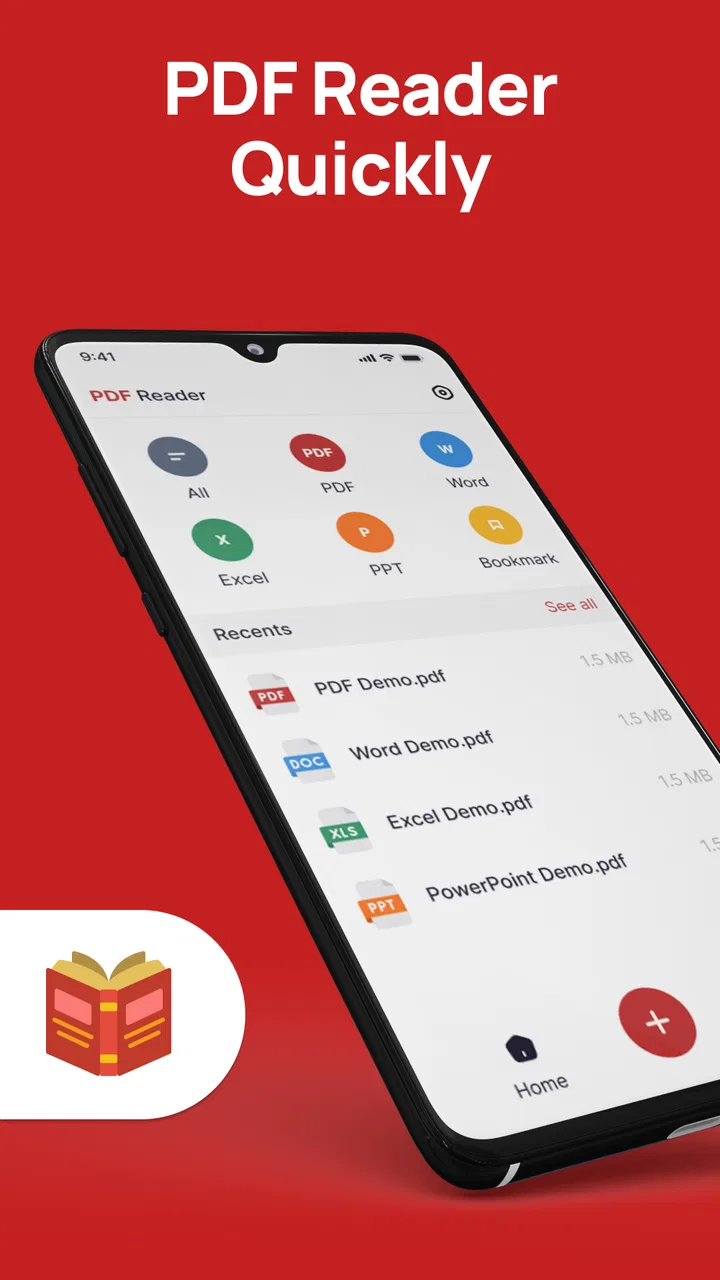
PDFs are easy to receive and surprisingly awkward to deal with. One document arrives in a messaging app, another sits in cloud storage, and a third needs a quick correction before it can be sent back. I have often found myself switching between a file manager, a viewer, a separate editor, and a sharing screen just to complete a small task. PDF Reader - Viewer & Editor is designed around that repeated inconvenience: it puts viewing, editing, and basic document management in one productivity app.
That focus makes it most useful for people who handle PDFs regularly but do not need a full desktop publishing suite. In my experience, its appeal is less about replacing every specialist tool and more about shortening the distance between opening a document and doing something practical with it. You can read a file, make an adjustment, and manage it from the same general workspace instead of treating every PDF as a separate chore.
The app is free to install and is suitable for everyone. It comes from Smarlong Technologies Electronics Limited, and its current release is version 1.0.5. The listing shows a 3.9 average from around 749 ratings, while more than a million people have installed it. Those figures suggest a reasonably broad audience, although they also tell me to keep expectations sensible: this is a useful mobile utility, not automatically a replacement for every advanced PDF workflow.
You May Also Like

 Blood Strike: 2.5 Anniversary
Blood Strike’s Loadouts Turn Every Drop Into a Tactical Gamble
A close look at Blood Strike’s custom loadouts: how fast access to signature weapons reshapes its battle royale rhythm, rewards preparation, and narrows the gap between fights.

 Pandora - Music & Podcasts
Pandora’s Music Is Easy to Start, but Harder to Recover
Pandora’s strength is its low-effort path from a seed to a station. Its weak spot is how much confidence it asks you to place in connection, setup, and quiet recovery.

 8 Ball Pool
 Is Built on Rivalries, Rematches, and Routine
A close look at the rivalries, rematches, shared routines, and unanswered safety questions that turn a quick pool match into a persistent mobile community.

 Samsung Music
’s Quiet Strength Is Playing What You Already Own
Its reach comes less from spectacle than from dependable access to a personal library. That simplicity is both the app’s strongest retention engine and its ceiling.

 AccuWeather: Weather Radar
AccuWeather Review: A Quick, Clear Forecast for Everyday Decisions
For everyday plans, the best forecast is the one you can understand quickly. AccuWeather makes rain timing, radar, and local conditions easy to act on, with a few trade-offs.

 Hill Climb Racing
Why Hill Climb Racing Still Turns Crashes Into One More Run
A tiny car, a bumpy hill and one more upgrade: Hill Climb Racing keeps resurfacing because its simple chaos makes every near-miss feel personal.
More From Our News Desk



Making the first PDF task less complicated
I’d start with a low-stakes PDF and use that first session to learn how the app handles the document before bringing in anything private or important. That gives you a practical feel for its everyday workflow without making assumptions about how your files are handled. Next, I’d look at how the same approach holds up when PDFs become part of a regular workday.
What I would do first
After installing it, I would begin with a small, familiar document rather than an important contract or a long archive. That gives you a chance to see how the app presents files, how quickly you can locate a document, and whether its editing controls feel comfortable on your phone. A short receipt, a form, or a saved instruction sheet is ideal for this first pass.
The first useful setup is not about changing dozens of preferences. It is about creating a simple habit: open the app when you need to find a PDF, use the viewer to check the document, and only then decide whether it needs editing or sharing. That order matters because it prevents accidental changes to a file that only needed to be read.
I also recommend keeping the original document untouched until you are satisfied with the revised copy. Mobile editing is convenient, but a phone screen gives you less room to review a page than a laptop monitor. A cautious workflow is to open the source, inspect it, make one type of change at a time, and check the result before sending it anywhere.
Why the all-in-one approach helps
The practical benefit is the reduction in app switching. With a conventional setup, I might open a file in one application, search for an editor when something needs changing, and then return to a file manager to rename or send it. PDF Reader - Viewer & Editor aims to keep those stages together, which is especially helpful when the task is short but repeated several times during the day.
This matters more than it sounds. The time saved is not only the few seconds spent launching another app. It is also the mental effort of remembering where the file was opened, which copy was edited, and whether the final version was actually shared. A single PDF workspace can make small administrative jobs feel more contained.
Still, I would not assume that “editor” means the same thing as a desktop design program. PDF files can contain complex layouts, embedded forms, unusual fonts, and scanned pages. A mobile utility is most comfortable when the job is straightforward: inspect a document, make a modest adjustment, and keep the file moving.
Reading is the foundation
The viewer is the part you will probably use most often. A good PDF reader should get out of the way, letting you concentrate on the page rather than on the application. This app makes sense for ordinary reading tasks such as checking a work document, reviewing a school handout, opening a downloaded manual, or looking over a form before completing it.
My advice is to judge the viewer by the documents you actually receive. Text-heavy PDFs are a fair test, but so are pages with tables, small print, and mixed layouts. If you mainly read clean documents, the app’s combined approach should feel natural. If your work depends on precise typography or advanced navigation, you may still prefer a dedicated desktop reader for final inspection.
Where it fits into everyday work
For routine work, I find it useful to treat a phone-based PDF tool as a way to keep a task moving, not as a substitute for every office tool. A quick check or modest change can be convenient while you’re away from a desk, while a complex document deserves a larger screen and a slower review. That distinction helps clarify where this app fits—and where another option may serve you better.
A realistic commute or appointment scenario
Imagine receiving a PDF appointment form while away from your computer. You open it on your phone, read the instructions, notice that one detail needs correcting, and prepare the document for return. The value of this app is that the whole sequence can happen in one place instead of waiting until you are back at a desk.
I would use that workflow for a simple document that needs a quick practical change, not for a file where every visual detail must remain perfect. Before sending it, I would scroll through every page again. That final review is important because a document can look fine at the point of editing while a later page still contains an outdated detail.
This is also where mobile convenience has a clear trade-off. A phone is available almost everywhere, but its smaller screen makes it easier to overlook alignment issues or tiny text. The app can remove the delay of finding a computer, yet it does not remove the need for careful checking.
Managing personal documents
For personal use, the app can serve as a central place for PDFs that otherwise become scattered across downloads and chat attachments. I can see the appeal for travel confirmations, household paperwork, study material, instructions, and documents that need occasional reference. The important habit is to give files sensible names and avoid keeping multiple ambiguous copies.
A useful trick is to separate “read now” documents from “edit and send” documents in your own routine. Open an incoming file to understand its purpose first. If it is only reference material, leave it alone. If it needs action, make the change in a deliberate second step. This simple separation reduces the chance of editing the wrong version.
For students, the app is more useful when the goal is quick access and light document handling rather than deep annotation or academic research. You can keep reading material close at hand and deal with a file while moving between classes. For professionals, it is better suited to short approvals, document checks, and routine correspondence than to complex publishing workflows.
When sharing is the next step
Many PDF tasks end with sending the file to another person. An all-in-one viewer and editor is helpful because you can inspect the document immediately before sharing it. I would use that moment to check the page count, confirm that the intended changes are visible, and make sure the file is the correct version.
This last check is one of the less obvious advantages of keeping the workflow together. When several applications are involved, it is easy to send the original instead of the revised copy. A single working environment does not guarantee perfect organization, but it reduces one common source of confusion.
There is also a privacy-related judgment to make. PDFs often contain addresses, signatures, identification details, or financial information. I would treat the app as a convenient tool, but I would still think carefully before opening sensitive files on a shared device or sending them through an unfamiliar channel. Convenience should not replace ordinary document caution.
Useful habits that save more time
The first habit is to review before editing. It sounds obvious, but it prevents unnecessary changes and helps you understand whether the document is actually editable or simply a scan. A scanned page may behave differently from a text-based PDF, so identifying that early saves frustration.
The second habit is to make one logical pass at a time. If you need to correct wording and prepare a document for sharing, finish the content review first, then perform the final visual check. Mixing those stages encourages rushed decisions, especially on a small screen.
The third habit is to use the app as a checkpoint rather than assuming the first saved result is final. Open the revised file again, read the affected page, and look at the surrounding content. This is particularly useful when a change occurs near a table, signature area, or tightly arranged paragraph.
The fourth is to avoid choosing a mobile PDF editor simply because it is free. The free starting point makes experimentation easy, but your decision should depend on the kind of work you do. If you only read and occasionally adjust ordinary documents, the approach is sensible. If you require advanced document production every day, a larger desktop application may still save more time overall.
What friction it removes, and where it remains
The strongest part of PDF Reader - Viewer & Editor is the way it combines the three actions people commonly need: opening a PDF, making changes, and managing the file afterward. That combination is more meaningful than a long feature list because it addresses a real interruption in everyday work. I do not have to think of reading and editing as completely separate jobs.
It is also a good fit for users who want a focused utility rather than a broader office suite. A full office package can be powerful, but it may feel excessive when the task is simply to inspect a PDF and deal with a small correction. This app’s narrower purpose can make it easier to reach for in those moments.
The main limitation is the natural constraint of mobile editing. Precision work takes longer on a phone, and reviewing a complicated document requires patience. If your priority is pixel-level layout control, extensive markup, document conversion, or a professional publishing process, I would choose a specialized alternative or a computer-based tool instead.
Another point to consider is the commercial model. The app is free, but optional in-app purchases range from around nine dollars to around thirty-nine dollars per item. That means it is worth checking which part of your workflow remains comfortable without paying and whether the paid options match a need you genuinely have. I would not spend money until I had tested the basic routine with the documents I handle most often.
The age rating of Everyone makes it approachable for a broad audience, including households and students. Even so, suitability is not the same as capability. A general audience can use it for ordinary PDF tasks, while a specialist may quickly notice the difference between a convenient mobile editor and a full professional document environment.
Who should use it
I would recommend it to someone who regularly receives PDFs on a phone and wants a single place to read, adjust, and organize them. It is especially practical for people who work away from a desk, handle routine paperwork, or need to respond to documents without waiting until they can access a computer.
It also makes sense for users who are tired of installing several narrowly focused tools for simple PDF jobs. The combined workflow is the reason to try it, not the assumption that it will outperform every dedicated reader or editor in every category.
I would skip it if your work depends on highly exact layout changes, large-scale document production, or a carefully controlled office workflow. In those cases, the time spent checking mobile edits may cancel out the convenience of doing them away from a computer. A dedicated alternative is better when precision matters more than immediacy.
My final judgment
After looking at the way this app is positioned, I see it as a practical answer to a recurring nuisance rather than a complete PDF department in your pocket. Its value comes from reducing the number of steps between receiving a document and dealing with it. For everyday reading, light editing, and file management, that can be enough to make a noticeable difference.
The 3.9 average indicates a mixed but generally workable experience, and the large install base shows that the idea has clear everyday appeal. I would approach it with realistic expectations, test it using non-critical documents, and build a careful review habit before trusting it with important paperwork.
My recommendation is to try it if your main goal is less friction, not advanced publishing power. The free entry point makes that decision easy, while the optional purchases mean you should confirm that the app solves your specific PDF routine before paying. For a person who wants to open, adjust, and manage documents without constantly jumping between tools, PDF Reader - Viewer & Editor is a sensible utility to keep available.
FAQs for PDF Reader - Viewer & Editor
01What features does the PDF Reader - Viewer & Editor offer?
The PDF Reader - Viewer & Editor provides a comprehensive suite of features, including viewing, editing, annotating, and signing PDFs. Users can also merge, split, and convert files into various formats. The app supports cloud integration, allowing seamless access and sharing across devices. It offers a user-friendly interface, making it suitable for both personal and professional use.
02Is the PDF Reader - Viewer & Editor compatible with all PDF file types?
Yes, the PDF Reader - Viewer & Editor is designed to be compatible with a wide range of PDF file types. It supports standard PDFs, as well as password-protected and encrypted files. The app ensures smooth rendering and accurate display of complex documents, including those with intricate graphics or multimedia elements.
03Does the app require an internet connection to function?
The basic functionalities of the PDF Reader - Viewer & Editor, such as viewing and editing PDFs, do not require an internet connection. However, features like cloud integration, online storage access, and downloading updates will need internet connectivity. Offline capabilities ensure users can work on documents anytime, anywhere.
04Are there any in-app purchases or subscription fees?
The PDF Reader - Viewer & Editor offers a free version with essential features. However, advanced functionalities, such as premium editing tools and enhanced cloud services, may require in-app purchases or a subscription. Users can choose a plan that fits their needs, with options for monthly or annual billing.
05How secure is the PDF Reader - Viewer & Editor for handling sensitive documents?
Security is a top priority for the PDF Reader - Viewer & Editor. The app employs robust encryption methods to protect sensitive documents. It supports password protection and permission settings for individual files, ensuring unauthorized access is prevented. Regular updates and compliance with security standards further enhance user trust.
Pros
- User-friendly interface
- easy navigation.
- Supports various file formats
- versatile use.
- Offers annotation tools
- enhances productivity.
- Offline access
- read anywhere anytime.
- Fast loading times
- smooth experience.
Cons
- Ads can be intrusive
- disrupts focus.
- Limited free features
- paywall present.
- Occasional crashes
- affects reliability.
- Large file sizes may slow performance.
- No cloud sync
- manual file management.

PDF Reader - Viewer & Editor
Gallery